
File Export and Import
CircuitShepherd supports exporting and importing these text-based file types:
| Type | File ending |
|---|---|
| circuit | *.circ.json |
| Value Set (simple list of values) | *.vas.txt |
| DAC characteristics | *.dac.json |
How to export a single circuit
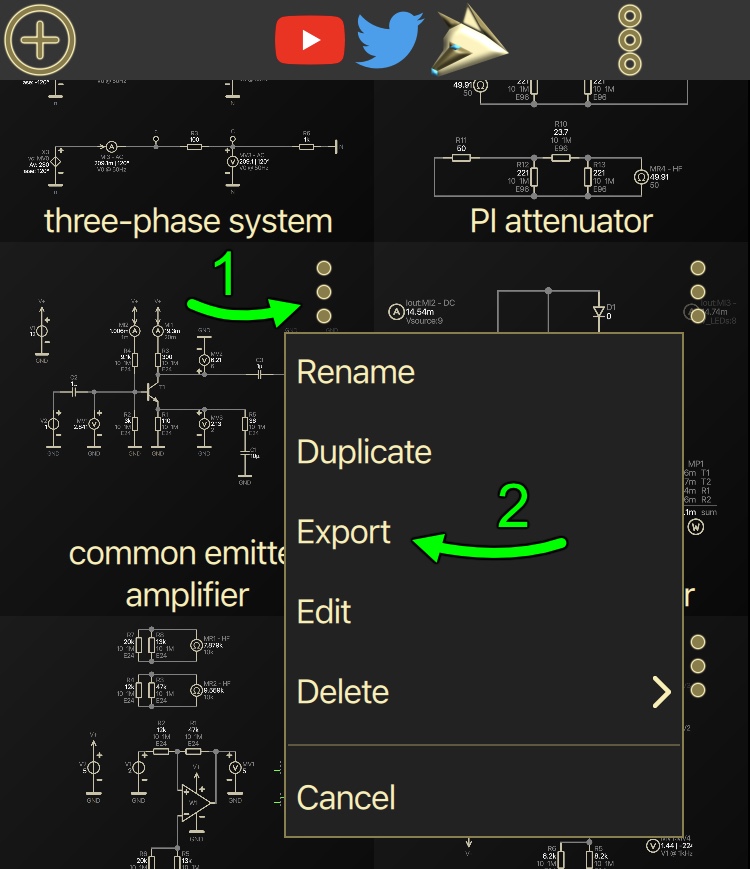
In the circuit overview, click on the context menu icon (1), then select “Export” (2).
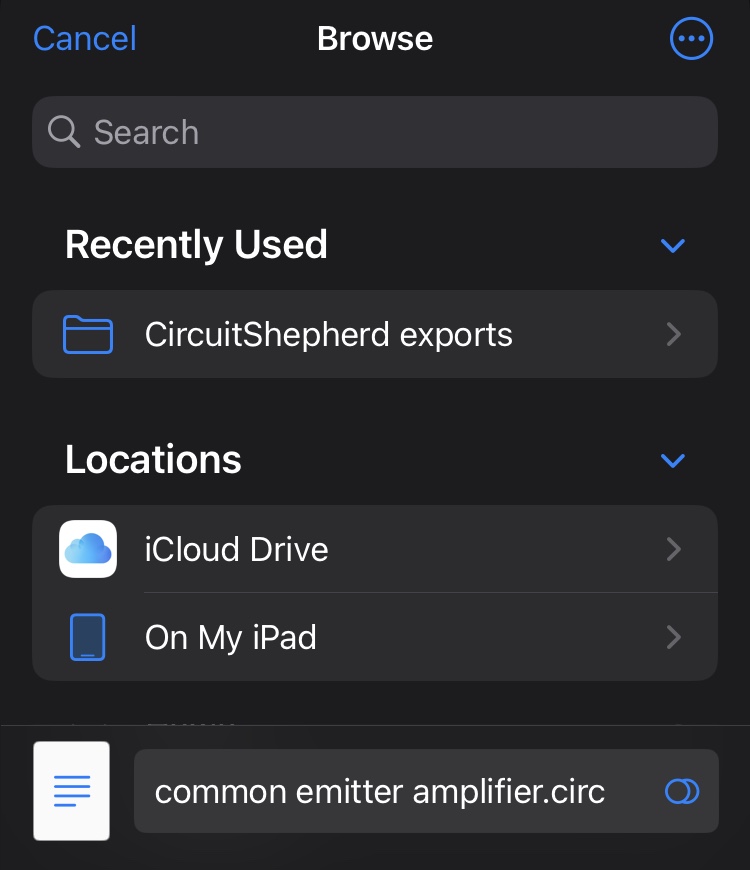
Select the desired directory for exporting the file. Note that the file dialog interface depends on your specific operating system. The file name, by default, is automatically generated from the circuit’s name. In some file dialog types, modifying the file name might not be possible.
How to export multiple circuits at once (batch export)
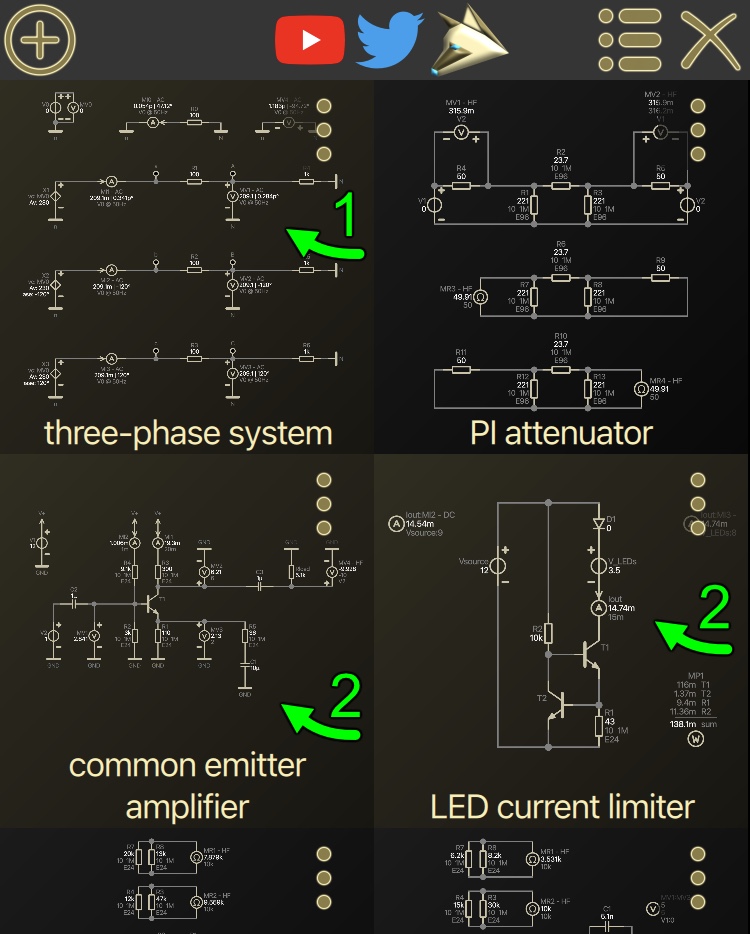
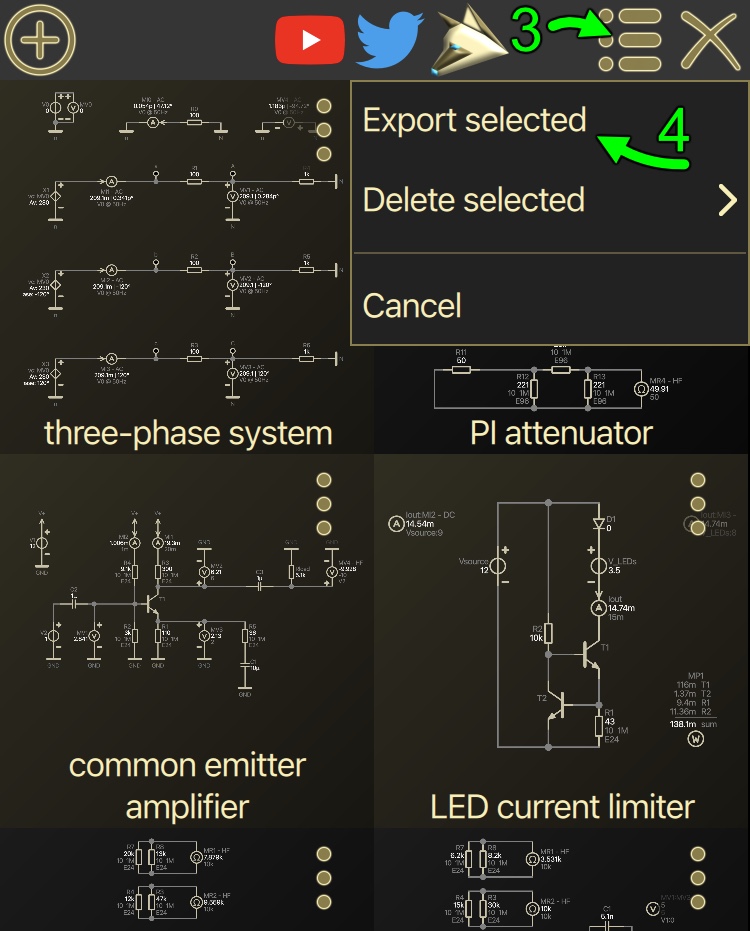
In the circuit overview, do a long press on any circuit (1) to enable the multi-select mode. Then tap on all additional circuits you want to export to select them (2).
In the selection context menu (3) click “Export selected” (4).
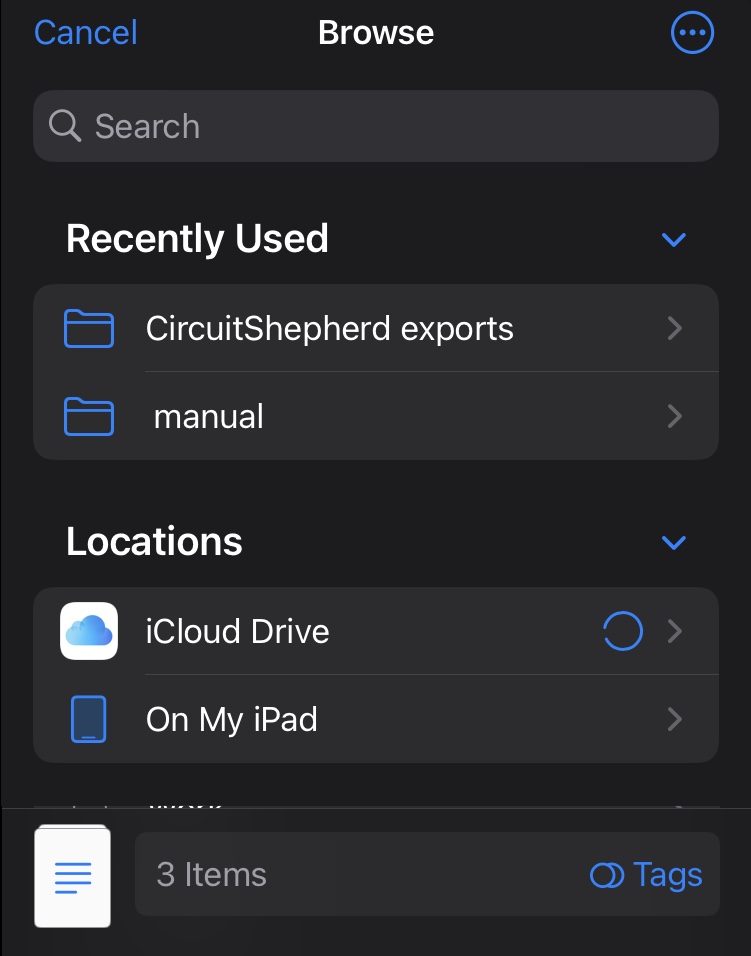
Select the desired directory for exporting the files. Note that the file dialog interface depends on your specific operating system. The file names are automatically generated from the circuit names.
How to import circuits
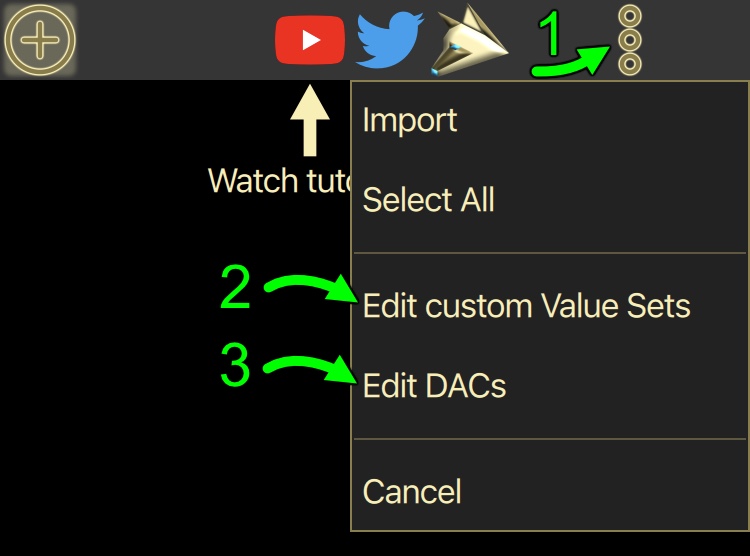
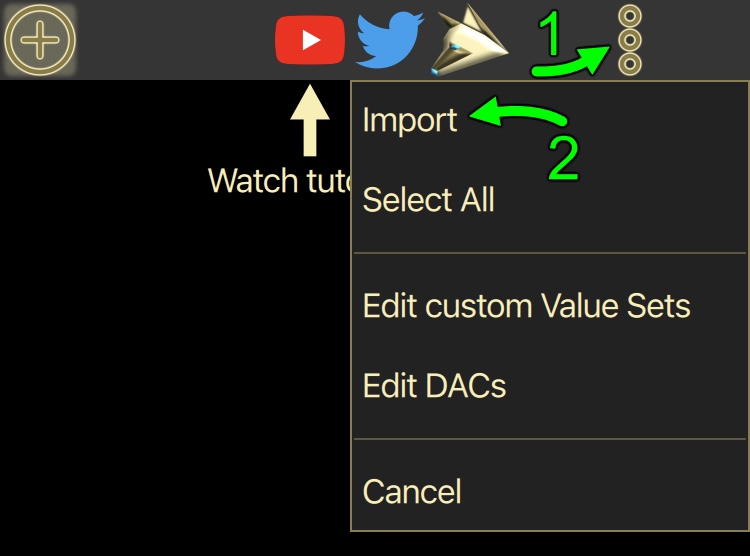
In the circuit overview, click on the main menu icon (1), then select “Import” (2).
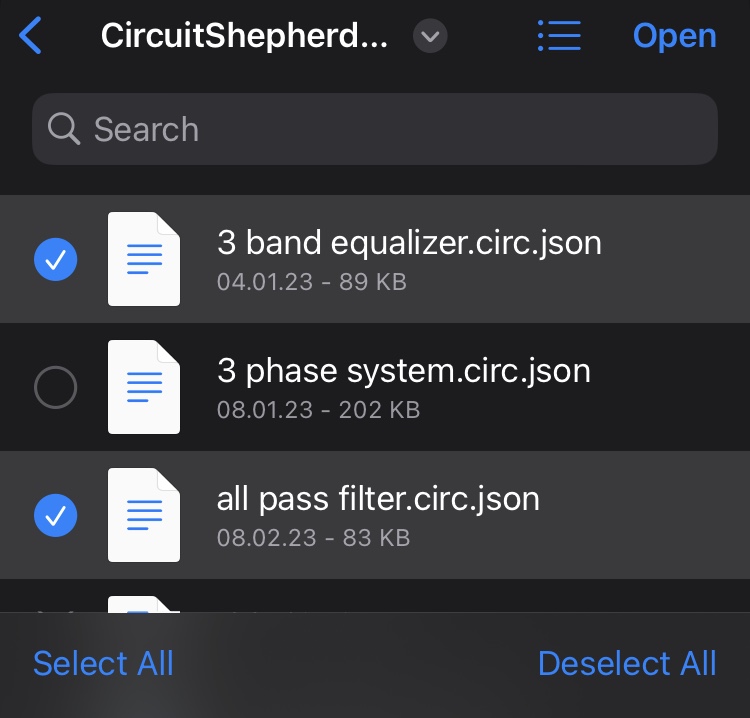
Select one or multiple circuit files that you wish to import. Please note that the appearance of the file dialog interface will depend on your specific operating system.
After import, the files will appear in the circuit overview. Please note that circuits are always sorted by the date of the last change. An import does not count as a change, so your imported files typically won’t appear at the top, but rather at any position in the list!
How to export and import Value Sets and DACs
In the main menu (1), simply open the overview of the corresponding file types (2, 3). Then the process is exactly the same as with the circuits.