
Progress indicator
The progress indicator gives you feedback about the simulator/optimizer state and the complexity of the optimization problem you want to solve.
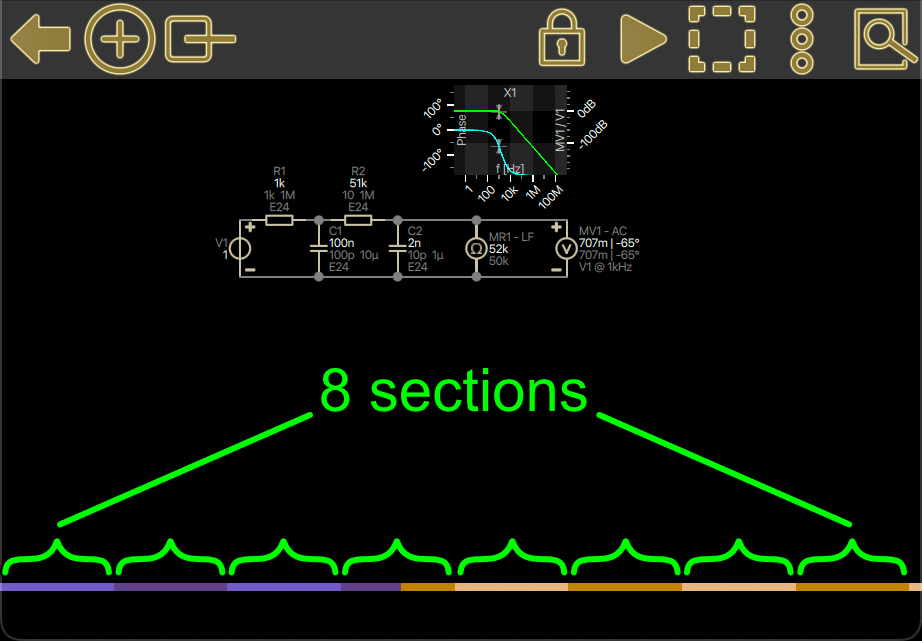
The number of sections increases with the count of all possible auto value combinations. Each section represents a decade.
For example, if there are more than 8 sections, you know that there are more than 10^8 = 100 000 000 possible combinations of auto values.
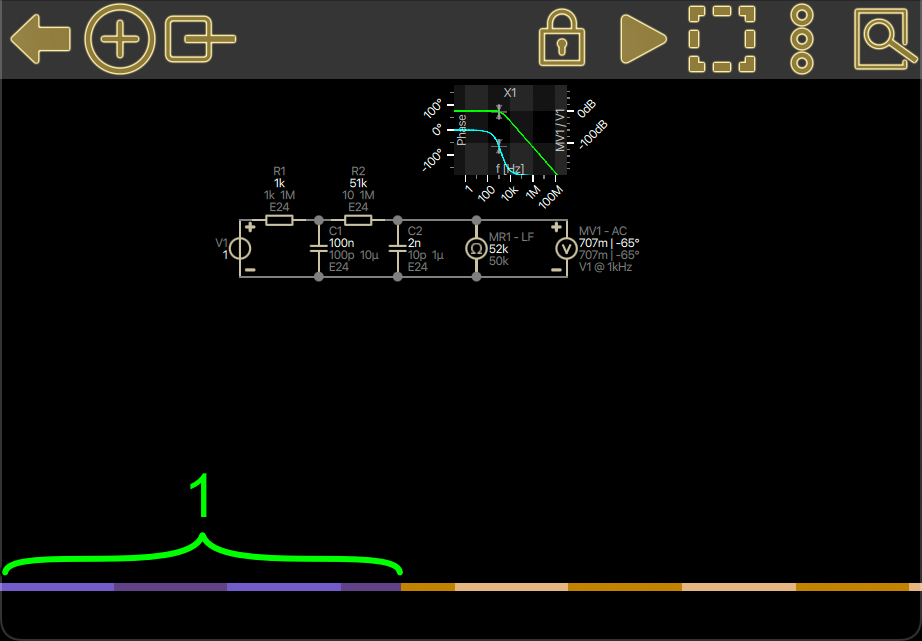
The violet bar (1) grows to the right over time and indicates how many combinations the “brute force” solver already has simulated.
Note that you do NOT need to wait until the violet bar reaches the right edge! Besides the brute-force method, there are also multiple much more sophisticated parameter optimization algorithms running in the background.
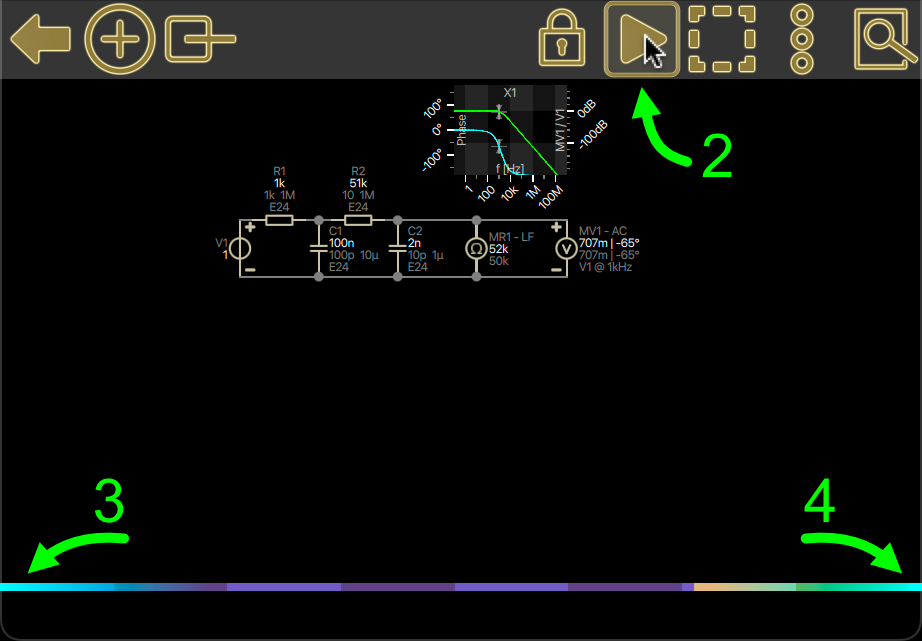
A visible left bulb (3) indicates that the simulator and optimizer are enabled. You can disable/pause them by unchecking the play button (2).
A visible right bulb (4) indicates that the shown simulation results are valid and up to date. Therefore it won’t show up if there is a simulation error! It will also disappear if you uncheck the play-button (means pausing simulation) and change something in the circuit.
Pulsating bulbs indicate that the simulator and optimizer are running. Pulsating will stop when the violet bar, which indicates the progress of the brute force solver, reaches the right end.
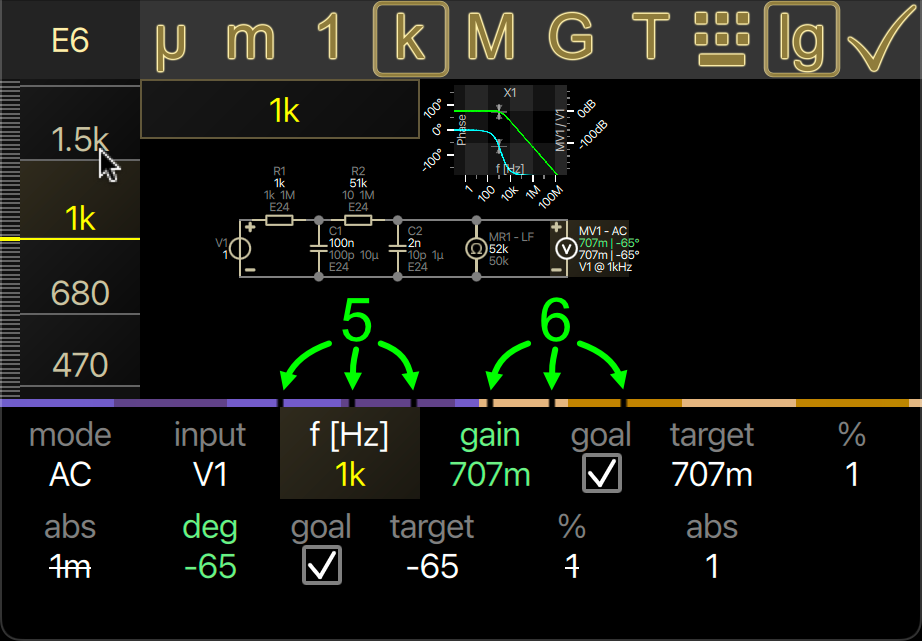
Every time you make a change to the circuit, a black dot traveling from the middle to the left (5) will appear.
Every time the simulation result is updated or an auto value changes, a black dot traveling from the middle to the right (6) will appear.